04 / App guide

How it works.

HGB helps you follow a structured home training program, move through each workout step by step, and keep a local history of completed sessions. The app displays the program you import or create — it does not choose exercises, prescribe training, or provide medical advice.

01 ·

Main tabs.

Five tabs along the bottom of the app. Each tab owns one job — train, review, plan, configure, manage files.

Workout tab showing the next session preview
Tab · Workout

Workout tab.

The Workout tab shows the session HGB thinks is next. If no program is stored, the screen shows setup instructions and an Open Settings button.

  • Priority order: in-progress → paused → next not-started → most recent completed.
  • Black background with a lime accent; the lime button is the primary action for the current step.
  • Header shows week, session number, current phase, and — once started — an elapsed workout timer.
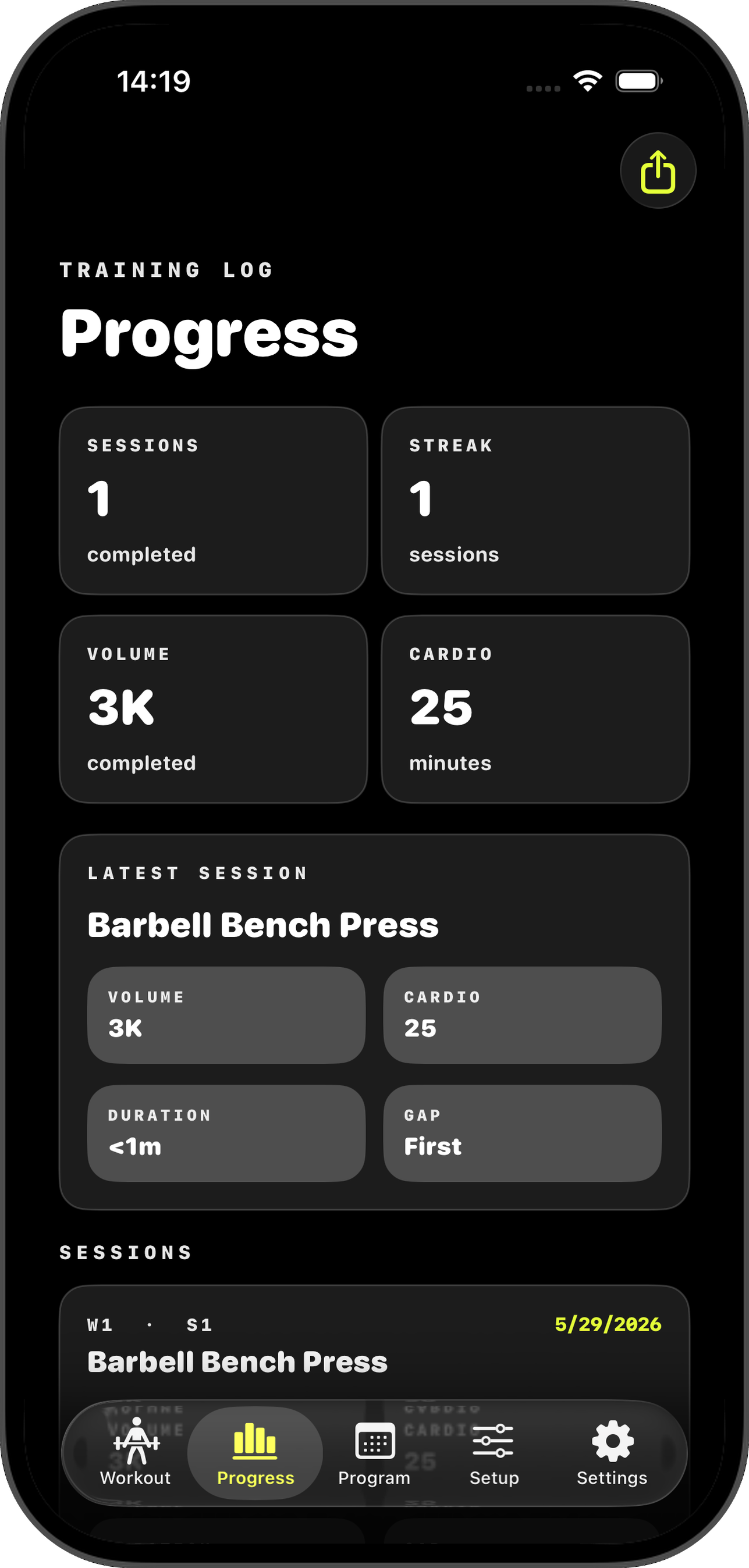
Progress tab with sessions, streak, volume, cardio, and latest session card
Tab · Progress

Progress tab.

A summary of completed sessions. Skipped sessions never create a progress log.

  • Sessions — number of completed sessions.
  • Streak — currently mirrors completed session count.
  • Volume — estimate from logged sets, reps, and load.
  • Cardio — minutes from workout rows that use time-based units.
  • Latest Session — newest completed workout, with volume, cardio, duration, and the gap since the previous logged session.
  • Share icon exports the full progress history as .csv. Disabled until you've logged at least one session.
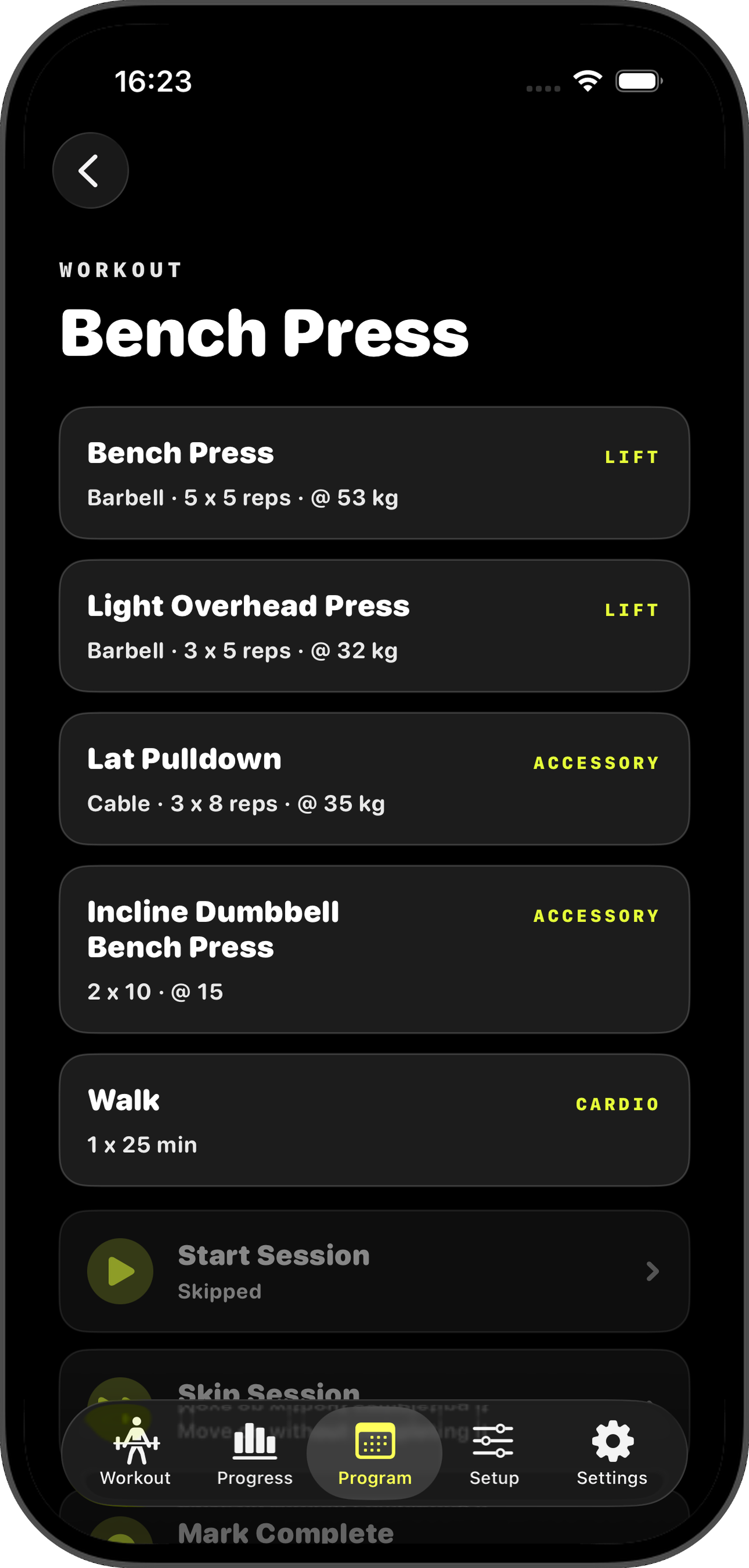
Program tab showing the current program detail
Tab · Program

Program tab.

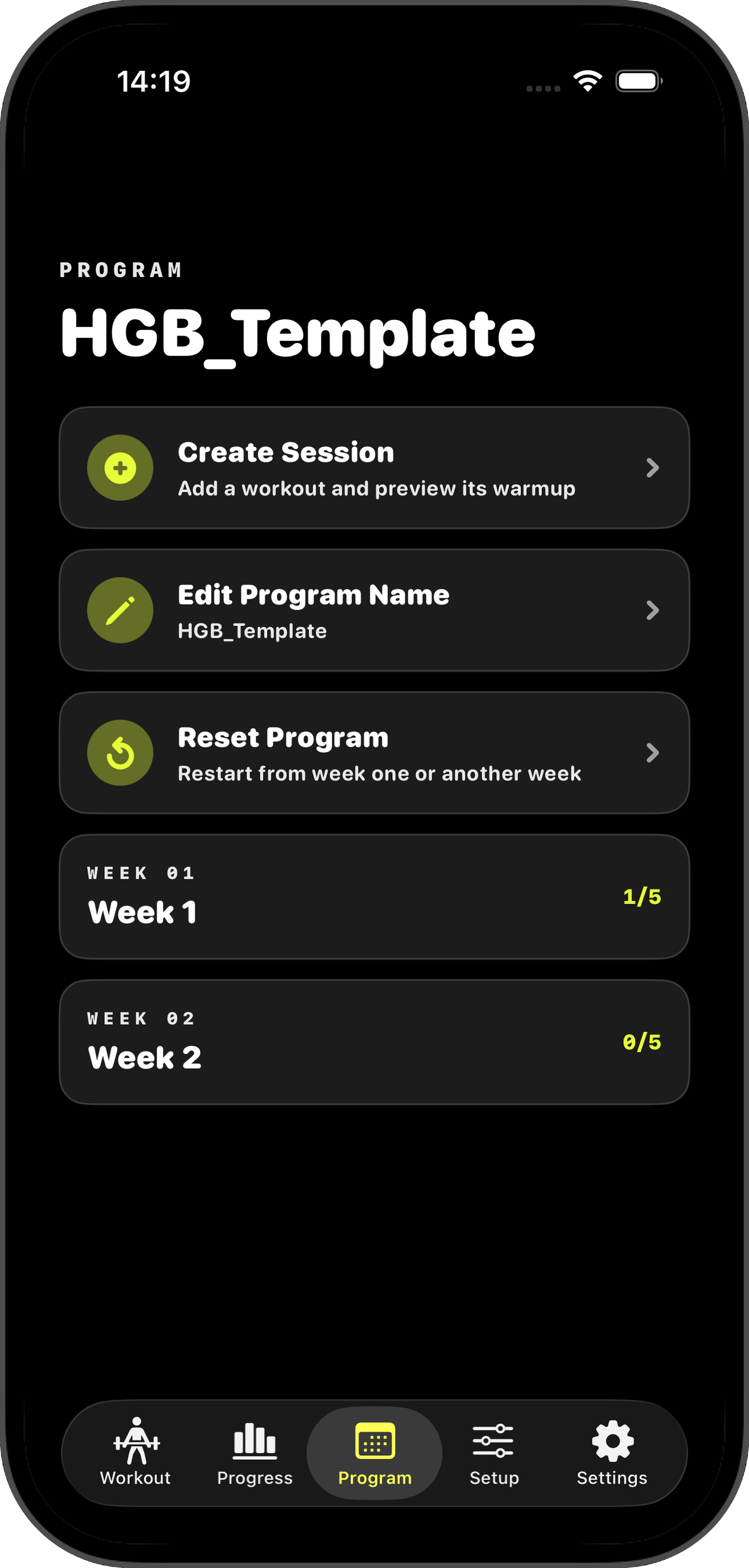
The Program tab opens the current program directly. It shows the program name, week rows, completed-session counts, and progress.

  • If no program is loaded, the empty state explains how to save the template, edit it, and import a program.
  • Tap a week row to inspect sessions, or use the program actions to create, rename, or reset.
Setup tab with weight unit, barbell, and rest timers controls
Tab · Setup

Setup tab.

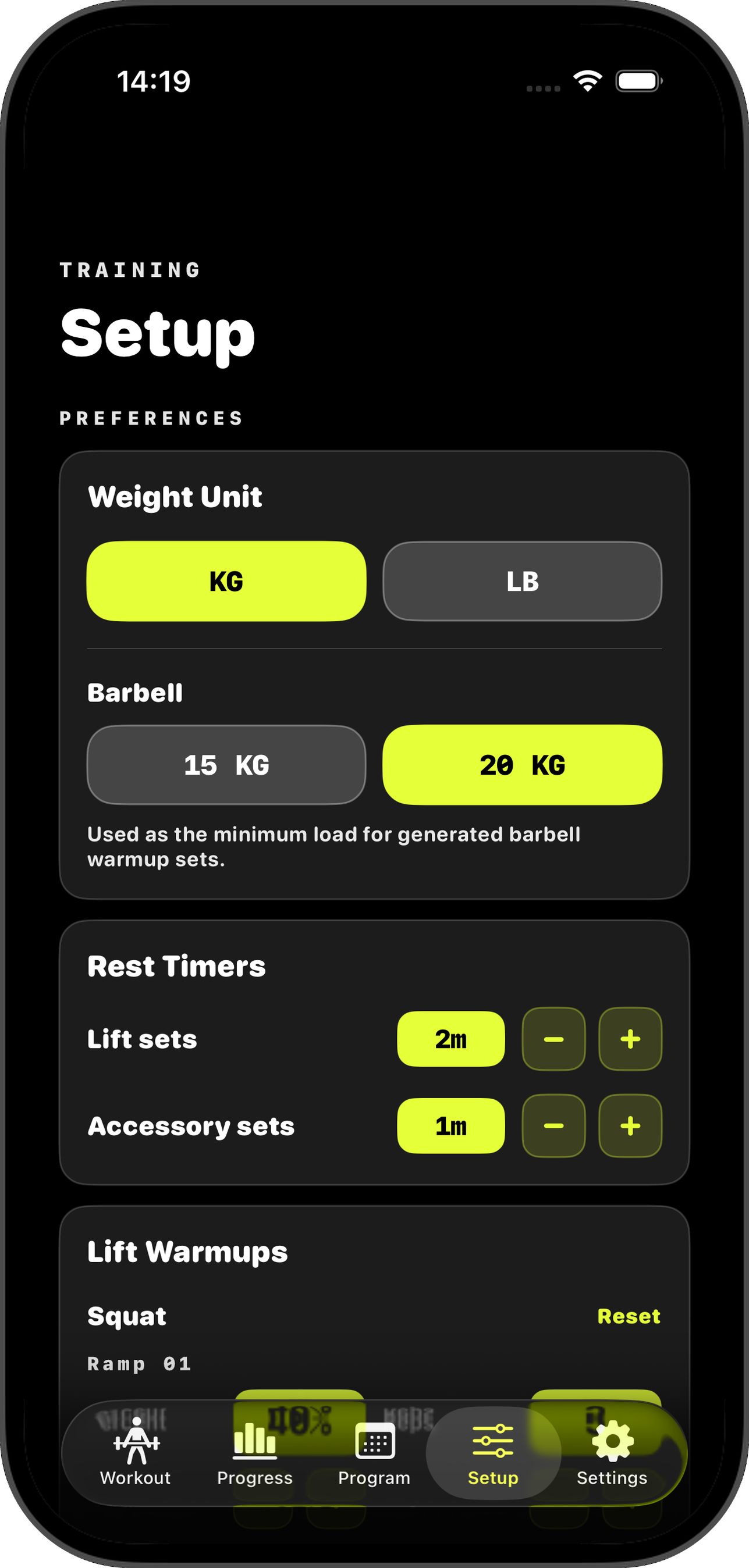
Workout behaviour and display preferences. Changes apply to how loads and timers are shown — imported workout data is never rewritten.

  • Weight Unit — switch displayed loads between kg and lb. Imported data isn't rewritten; only display values change.
  • Barbell — minimum barbell load used to generate warmup sets, usually 15 kg or 20 kg.
  • Rest Timers — default rest length for lift sets and accessory/mixed sets. Plus and minus adjust in small increments.
  • Lift Warmups — customise generated ramp-up sets for squat, bench/press, and deadlift. Each ramp has a percent and rep count.
  • Reset — restore the default warmup template for that lift category.
Settings tab with Import, Save, Stored Programs and Support HGB sections
Tab · Settings

Settings tab.

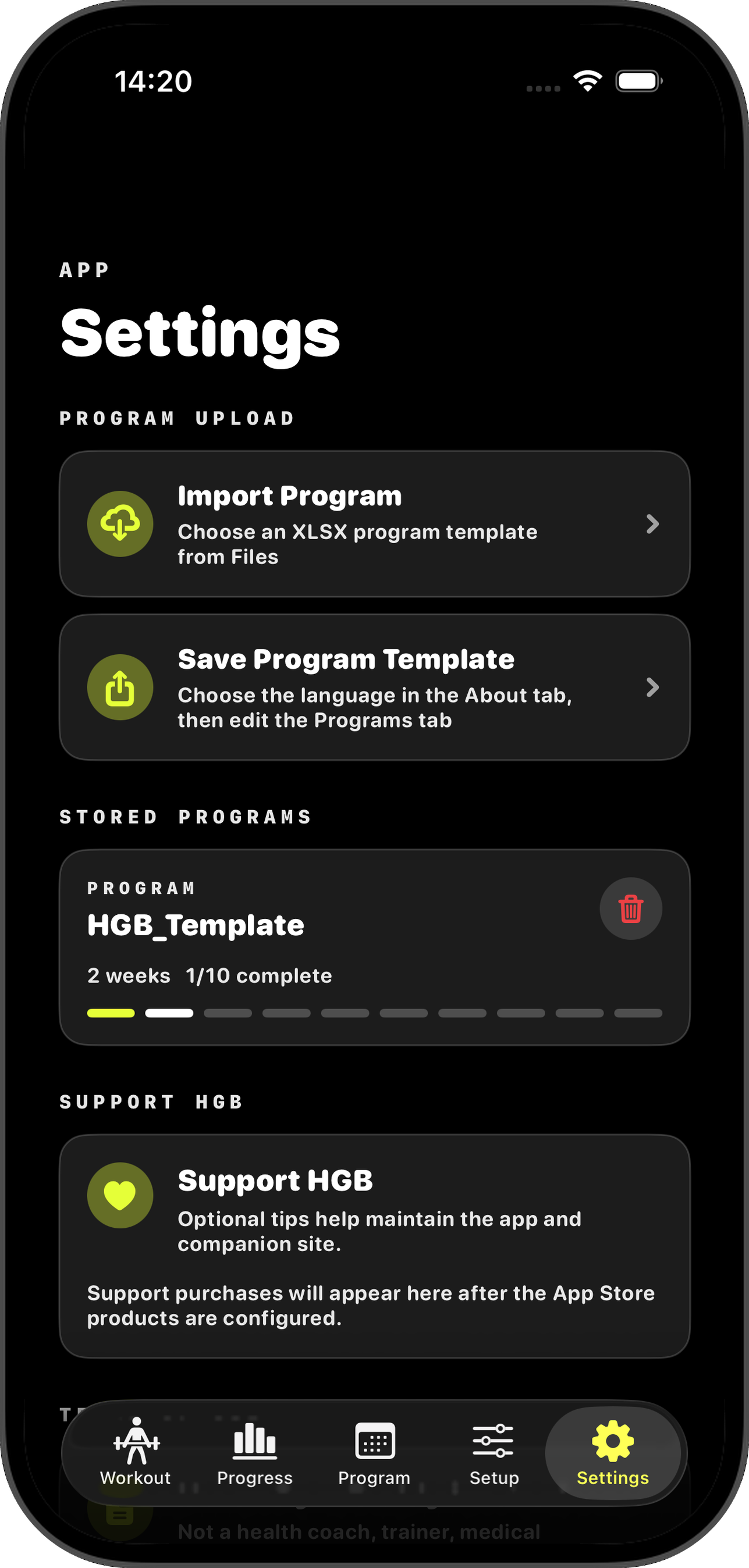
Files, stored programs, support purchases, and terms.

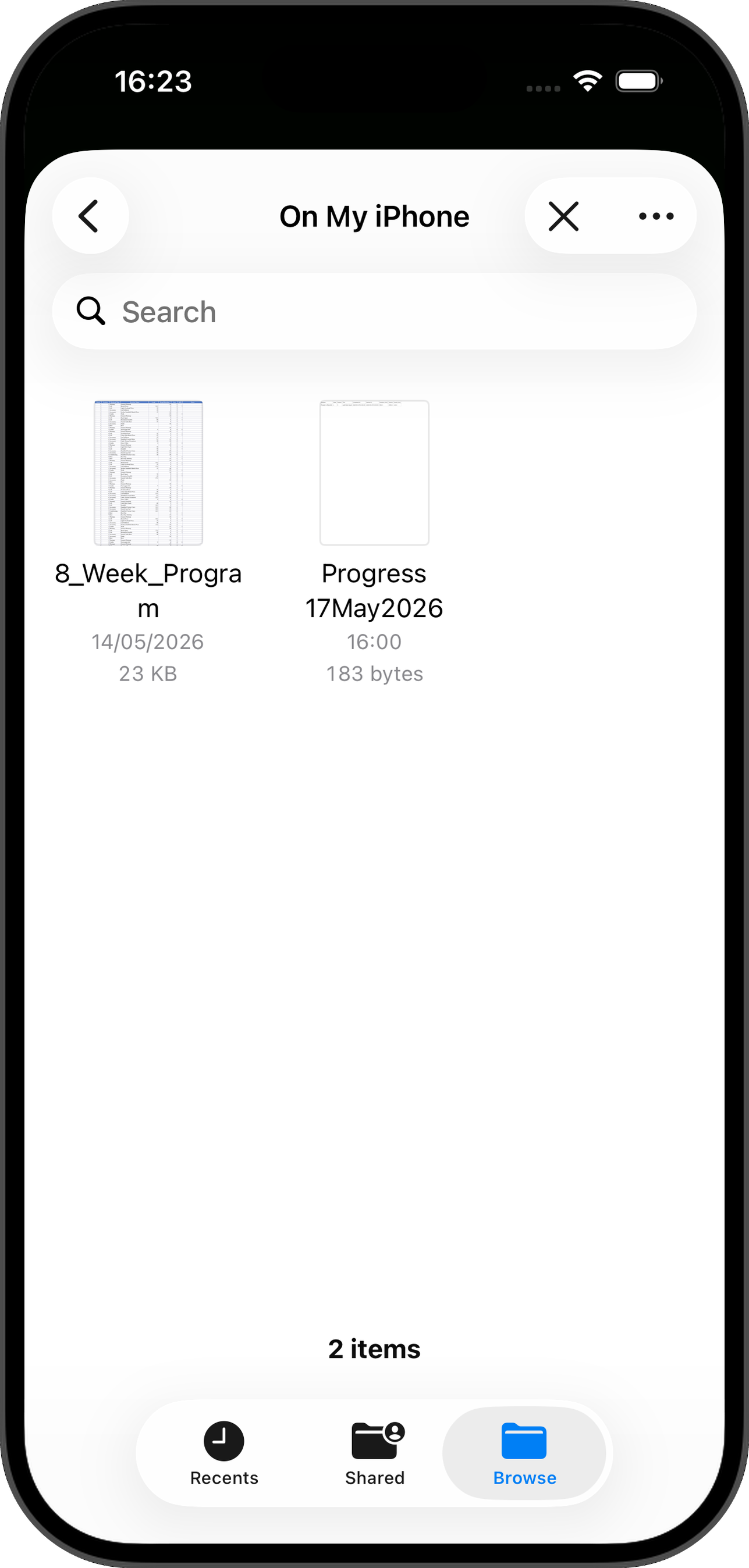
  • Import Program — opens Files so you can choose an .xlsx, .csv, or .tsv program file.
  • Save Program Template — exports the bundled my program.xlsx template so you can edit it.
  • Stored Programs — saved programs, with a trash button to delete them.
  • Support HGB — optional App Store tips. They never unlock features.
  • Terms of Use — HGB is a display and tracking tool, not a coach, trainer, medical professional, or training program.
  • Program and progress data stay local unless you export or back it up yourself.
02 ·

Workout flow screens.

The screens you see during a session — from previewing the workout, through warmups and working sets, to rest, pause, and rest-day handling.

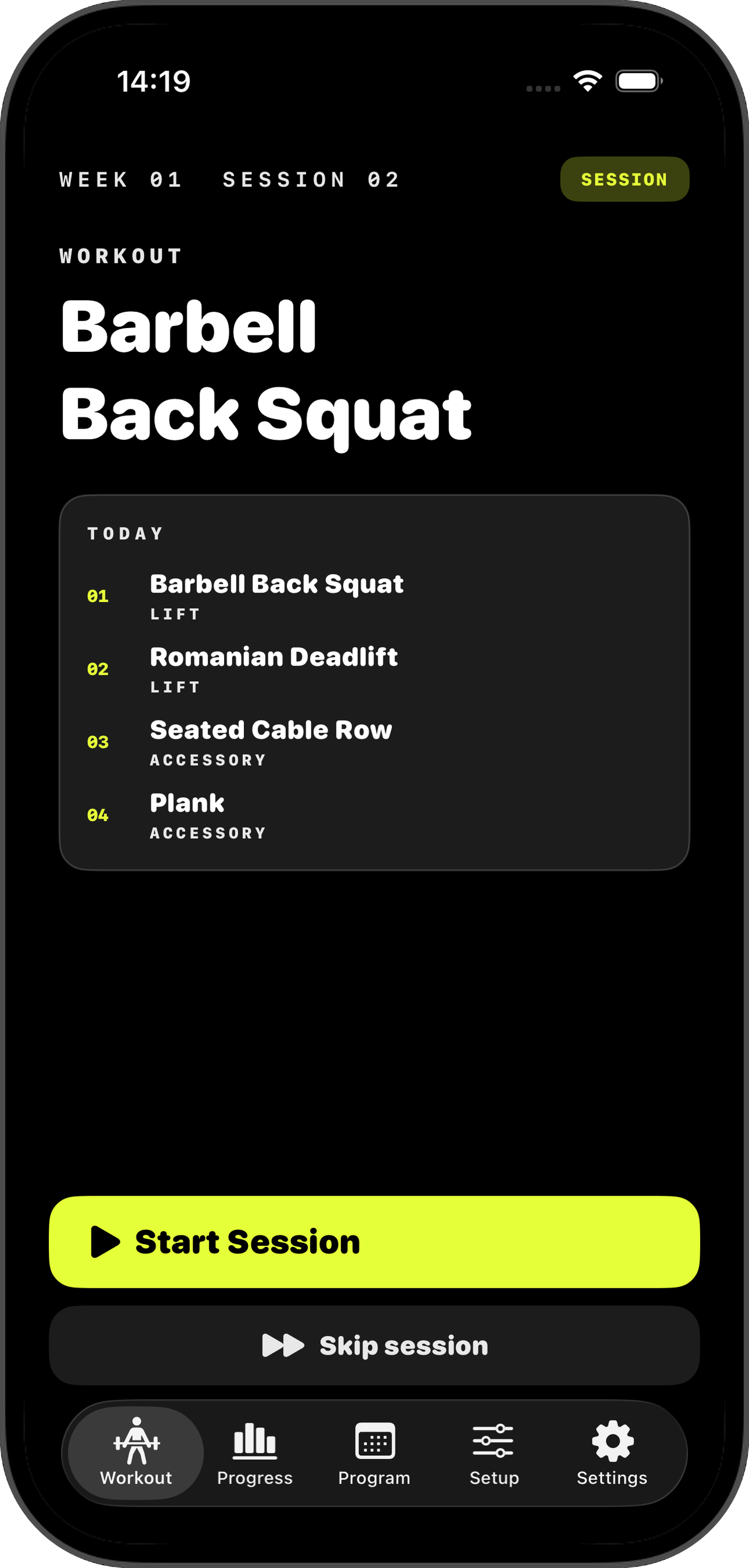
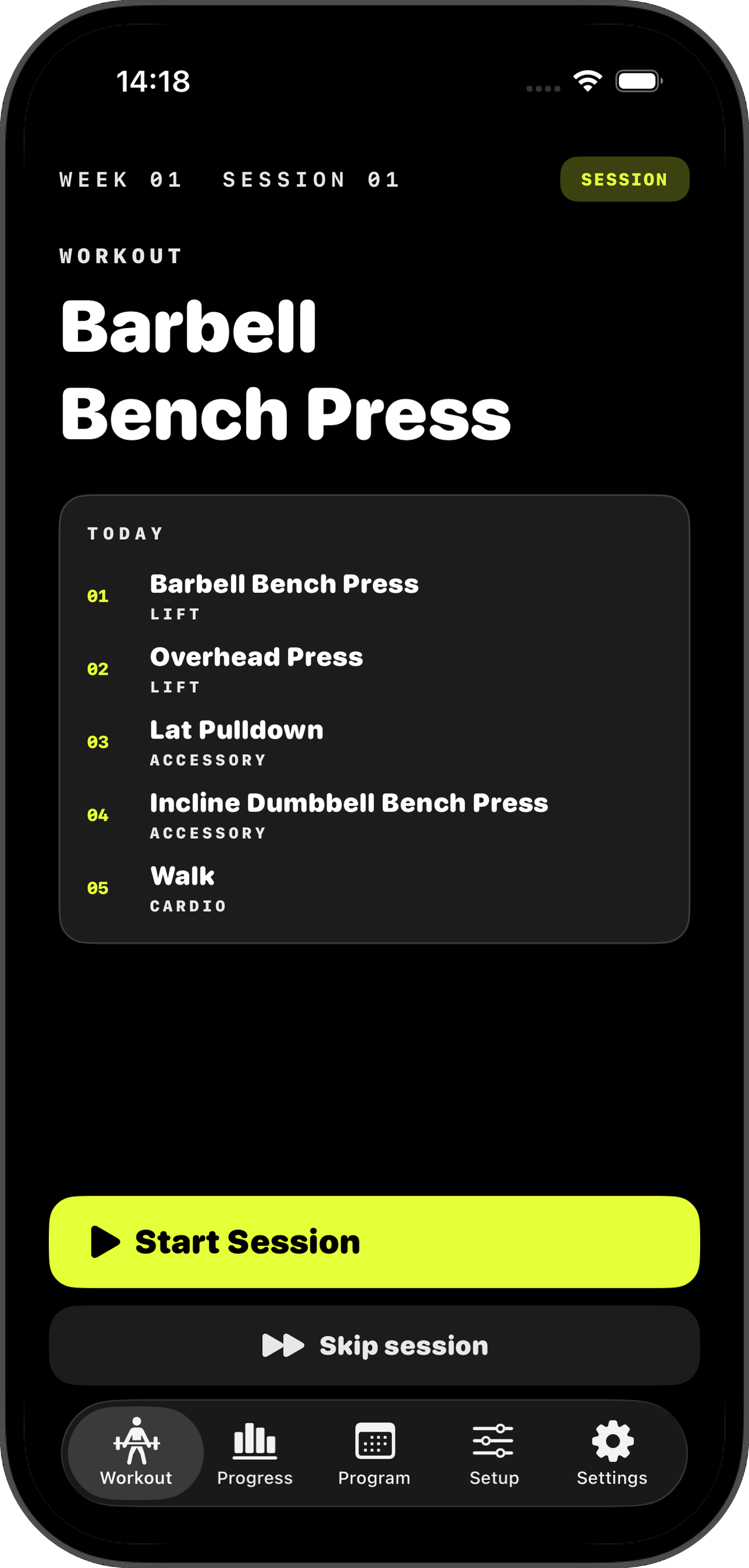
Session Start preview listing today's workout items
Flow · Session start

Session Start.

Previews the next workout before you begin.

  • WORKOUT — the session title.
  • TODAY — every workout item in order, each tagged with its workout type.
  • Start Session — begins the workout and moves into the general warmup.
  • Skip session — marks the session skipped and moves the program forward without saving progress.
Warmup screen with exercise counter and Next button
Flow · Warmup

Warmup.

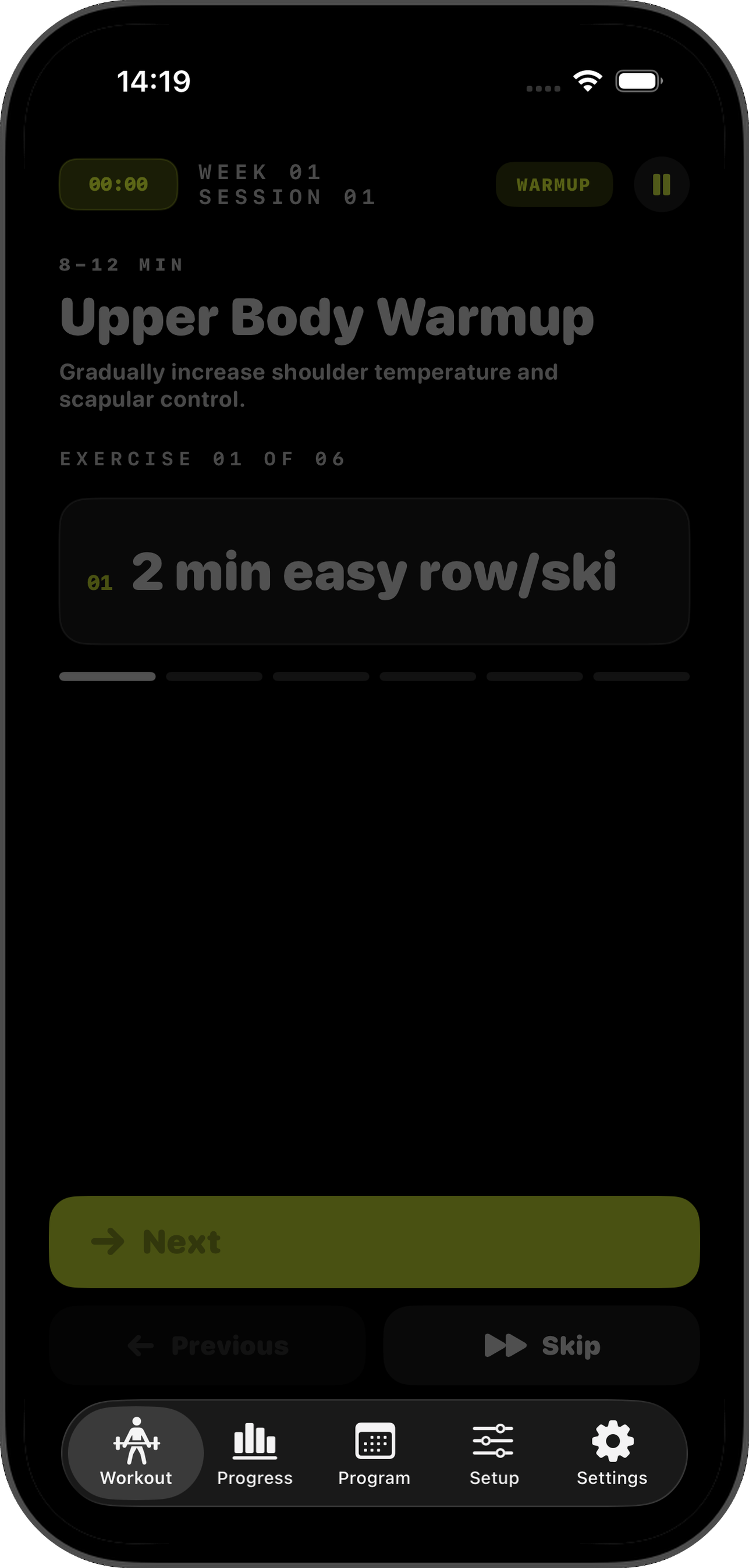
A general movement-prep sequence selected from the workout contents.

  • Top text shows warmup duration, name, and goal.
  • Exercise counter tracks which warmup exercise you're on.
  • Progress bar fills as warmup exercises are completed.
  • Next advances; Previous returns to the prior exercise; Skip skips the current one.
  • Warmup complete moves into the workout. The pause icon pauses the whole session.
Working Set screen with 54 kg target, RPE 7, and Adjust controls
Flow · Working set

Working Set.

Guides each lift, accessory, mixed, cardio, or plyometric step.

  • Phase label reads WORKING SET for normal sets and WARMUP SET for generated lift ramp-up sets.
  • Large number = target load. BW means bodyweight.
  • Line below the load = target reps or duration. RPE shows up when the program row includes it.
  • SETS shows the current set number and total sets for the current workout item.
  • Progress bar marks completed, current, and remaining sets.
  • Set complete records the set and starts a rest timer when appropriate. Finish session completes the final set and writes the progress log.
Adjust card with weight, reps, split set and reset controls
Flow · Adjust card

Adjust Card.

Appears on normal working sets to fine-tune the live set.

  • Weight ± adjusts the displayed working load for the current set.
  • Reps ± adjusts the displayed rep target.
  • Split set divides the current set into up to four parts. The complete button advances through split parts before completing the set.
  • Reset restores the prescribed load and reps for the current step.
  • Adjustments guide the live display — the progress log still summarises the programmed session rather than every adjusted set.
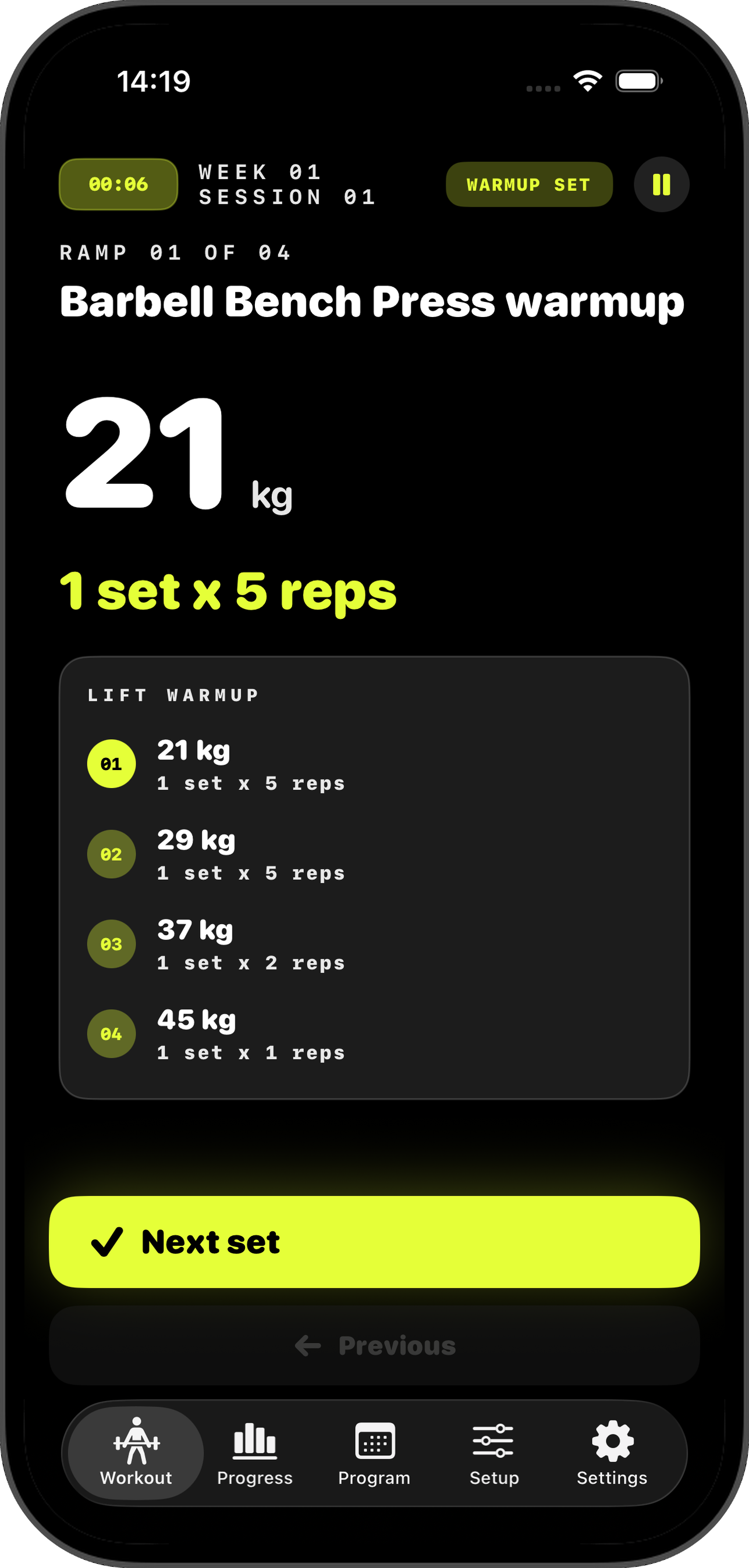
Lift Warmup ramps for Bench Press with four ramps and Next set button
Flow · Lift warmup sets

Lift Warmup Sets.

For supported barbell lifts, HGB inserts generated ramp-up sets before the working set.

  • Supported names include squat, bench, press, and deadlift variations.
  • Clearly non-barbell equipment doesn't receive generated barbell ramp-up sets.
  • The LIFT WARMUP list shows each ramp's load and rep prescription. The highlighted number marks the active ramp.
  • Previous can step back through ramp efforts.
  • Templates come from the Setup tab.
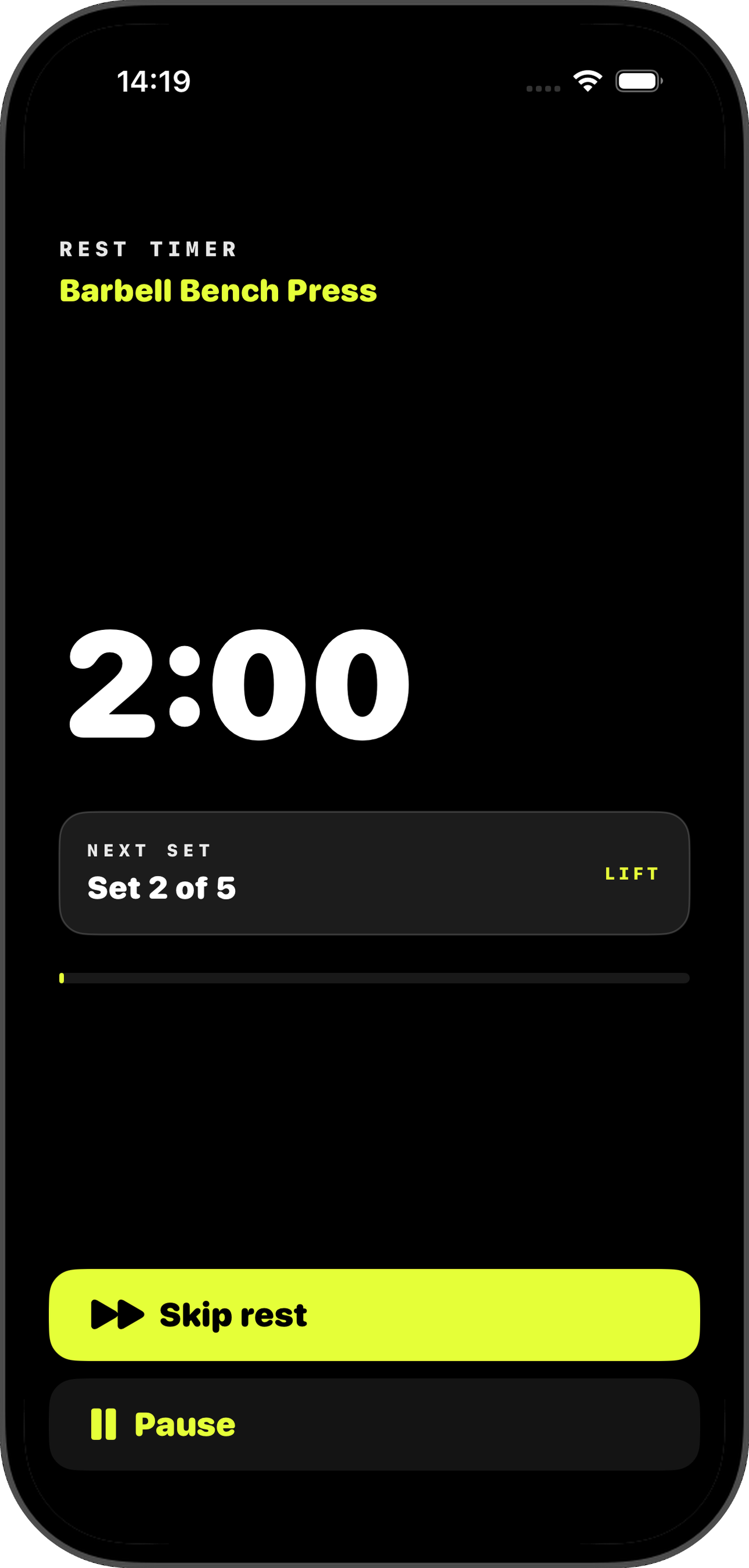
Rest timer counting down 1:59 with the next set preview
Flow · Rest timer

Rest Timer.

Appears after lift, accessory, or mixed sets when a rest duration is configured.

  • Large countdown = time remaining. The progress bar fills as rest passes.
  • Panel shows whether the next action is another set or a new exercise — and, for a new exercise, its equipment, load, sets, reps, or duration.
  • Final five seconds play countdown beeps and haptics.
  • Skip rest immediately moves to the next set or exercise.
  • Leave the app during rest and HGB schedules one local notification.
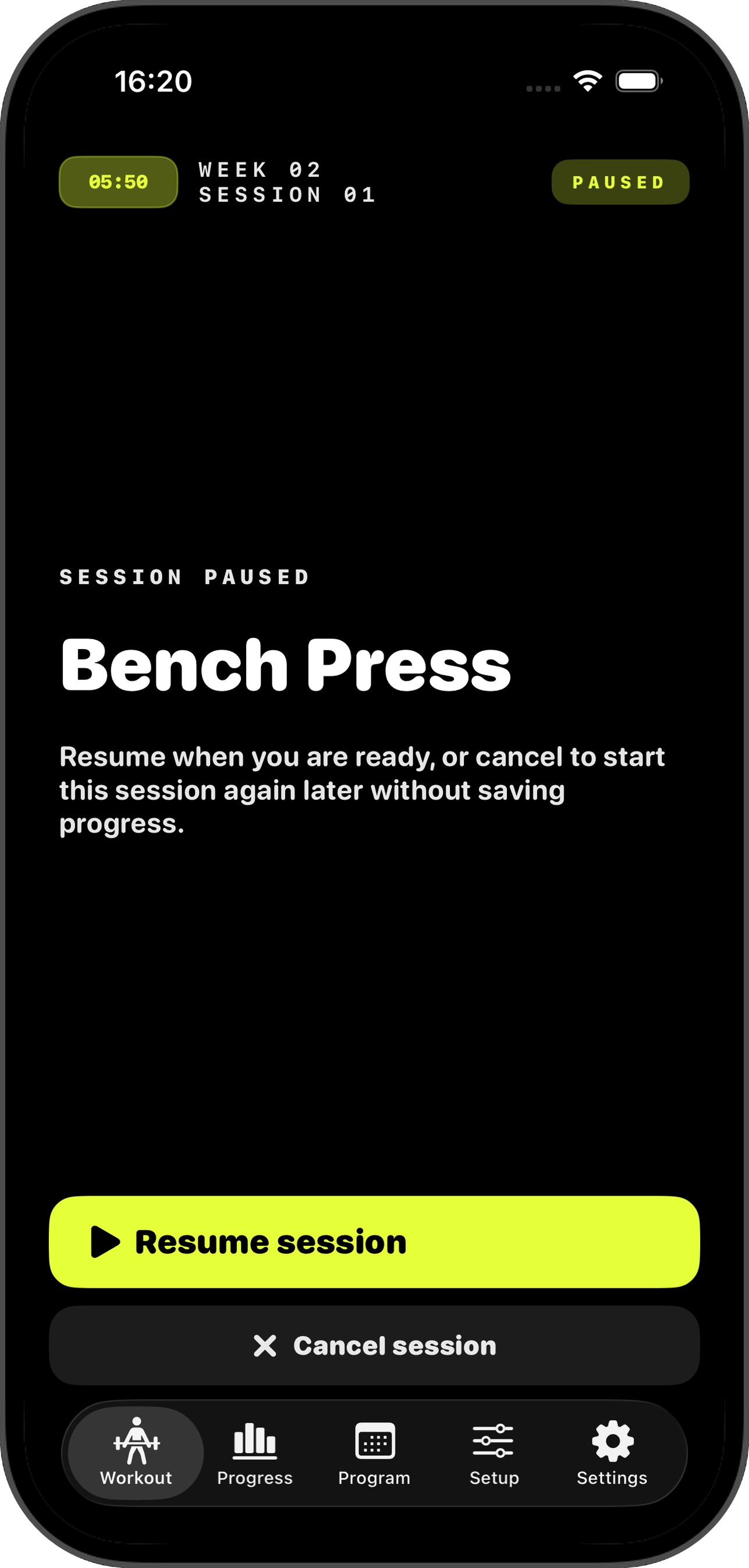
Paused session screen with Resume and Cancel actions
Flow · Paused session

Paused Session.

Appears when you pause an active workout.

  • Resume session continues the workout.
  • Cancel session resets the session so you can start it again later without saving progress. Requires confirmation with Cancel without saving or Keep paused.
  • Paused time is excluded from completed-session duration.
Recovery day screen with Rest complete and Skip session buttons
Flow · Rest day

Rest Day.

Dedicated screen for rest sessions. A rest session is detected only when every item in the session is a rest item.

  • Rest days don't need to be started.
  • Rest complete marks the rest session complete and moves the program forward.
  • Skip session skips the rest day.
03 ·

Program detail screens.

Use the Program tab to manage the current program, inspect weeks and sessions, rename it, reset it, or hand-build a one-off session.

Program detail showing weeks, progress, and program actions
Programs · Detail

Program Detail.

Manage a program's weeks and sessions.

  • Create Session opens a manual session editor.
  • Edit Program Name renames the program.
  • Reset Program restarts the program from a selected week.
  • Week rows show the week number, title, completed-session count, and progress.
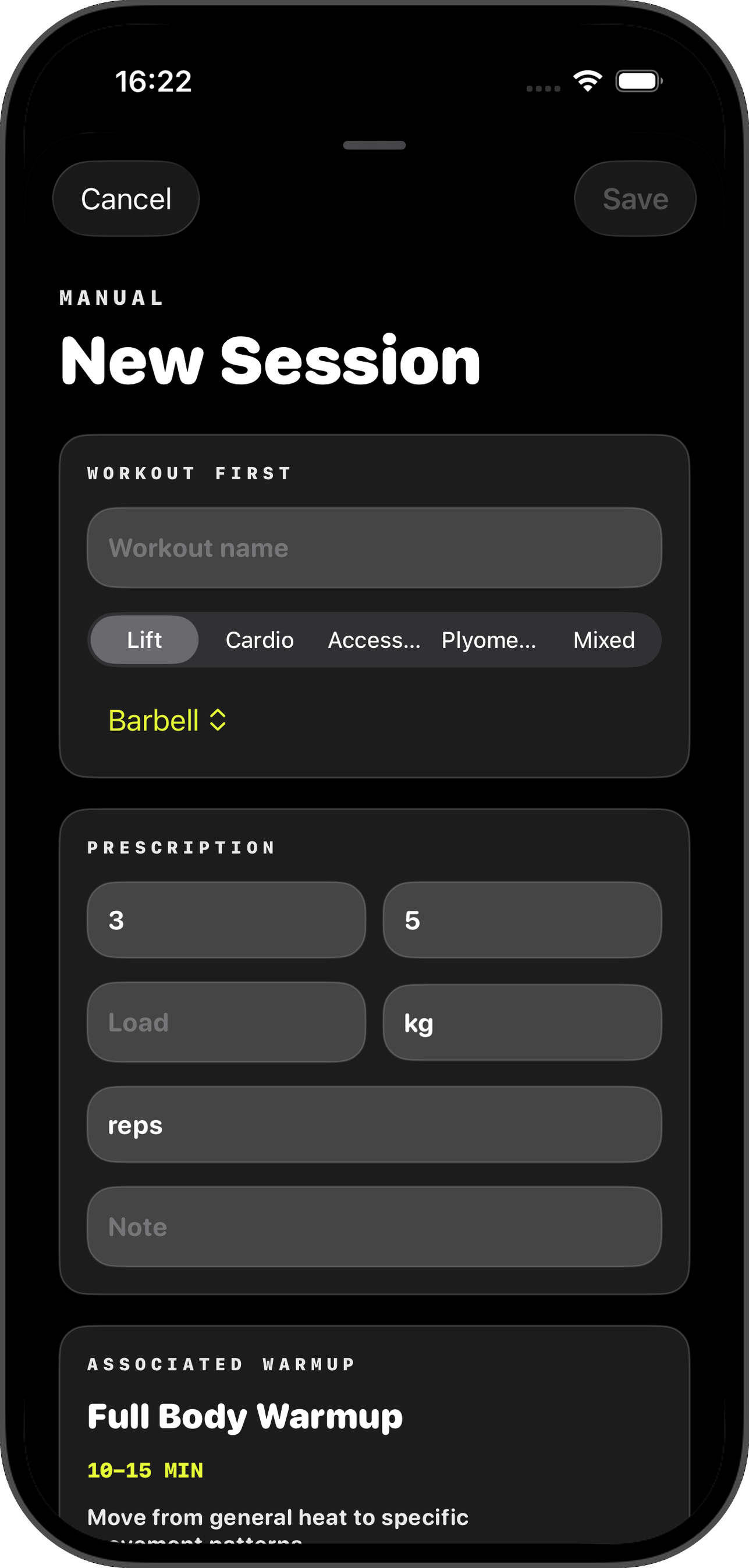
Manual New Session editor with Workout First and Prescription fields
Programs · New session

New Session.

The manual session editor adds a one-item session to a program.

  • Workout First — workout name, workout type, and equipment.
  • Prescription — sets, reps or duration, load, load unit, rep unit, and note.
  • Associated Warmup — previews the warmup that will be selected for this workout.
  • Program Slot — chooses the target week. You can add to a new week after the current highest week.
  • Save is enabled once a workout name is entered.
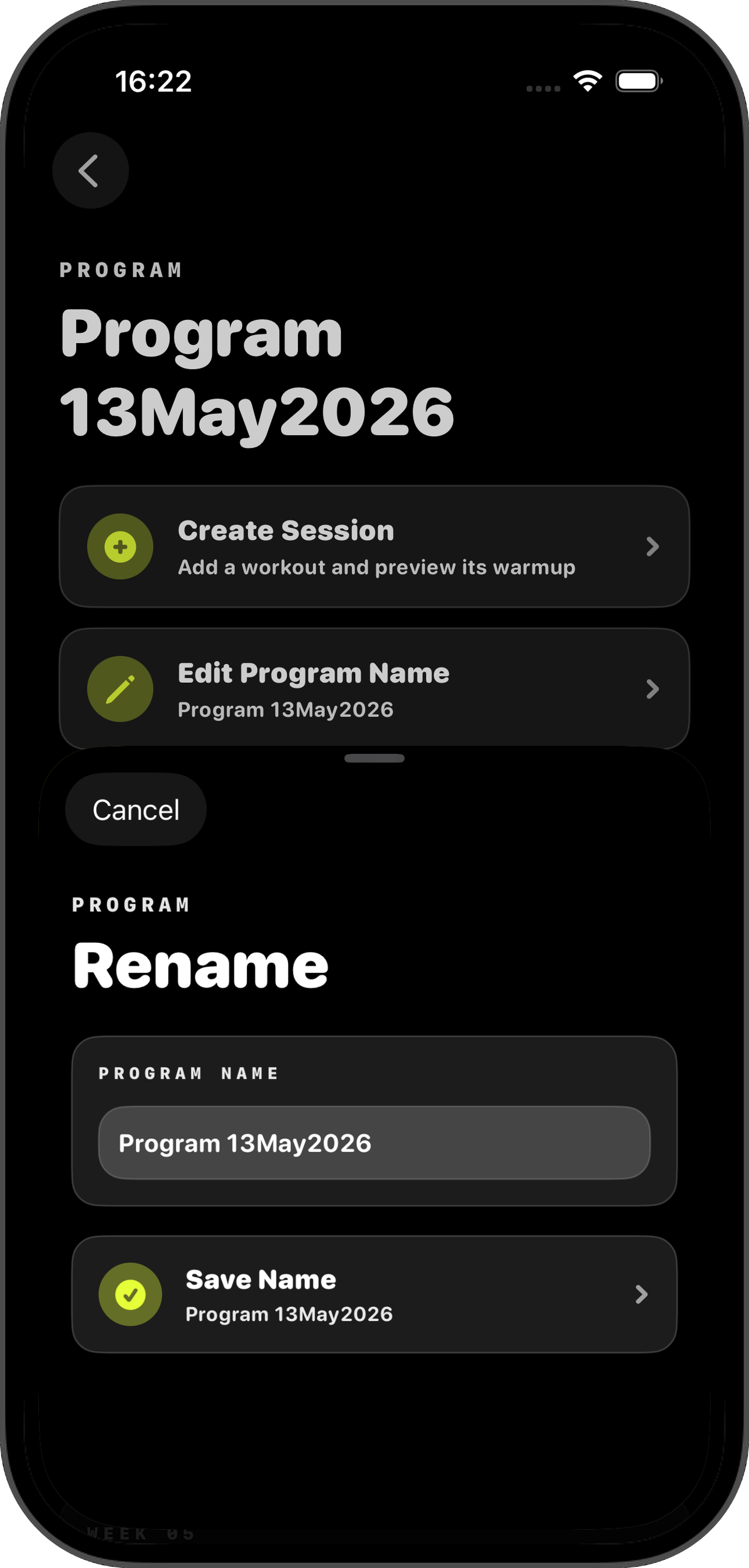
Rename program sheet with program name input and Save Name button
Programs · Rename

Rename.

Change a program's name.

  • Enter a non-empty name.
  • Save Name applies it; Cancel closes without changes.
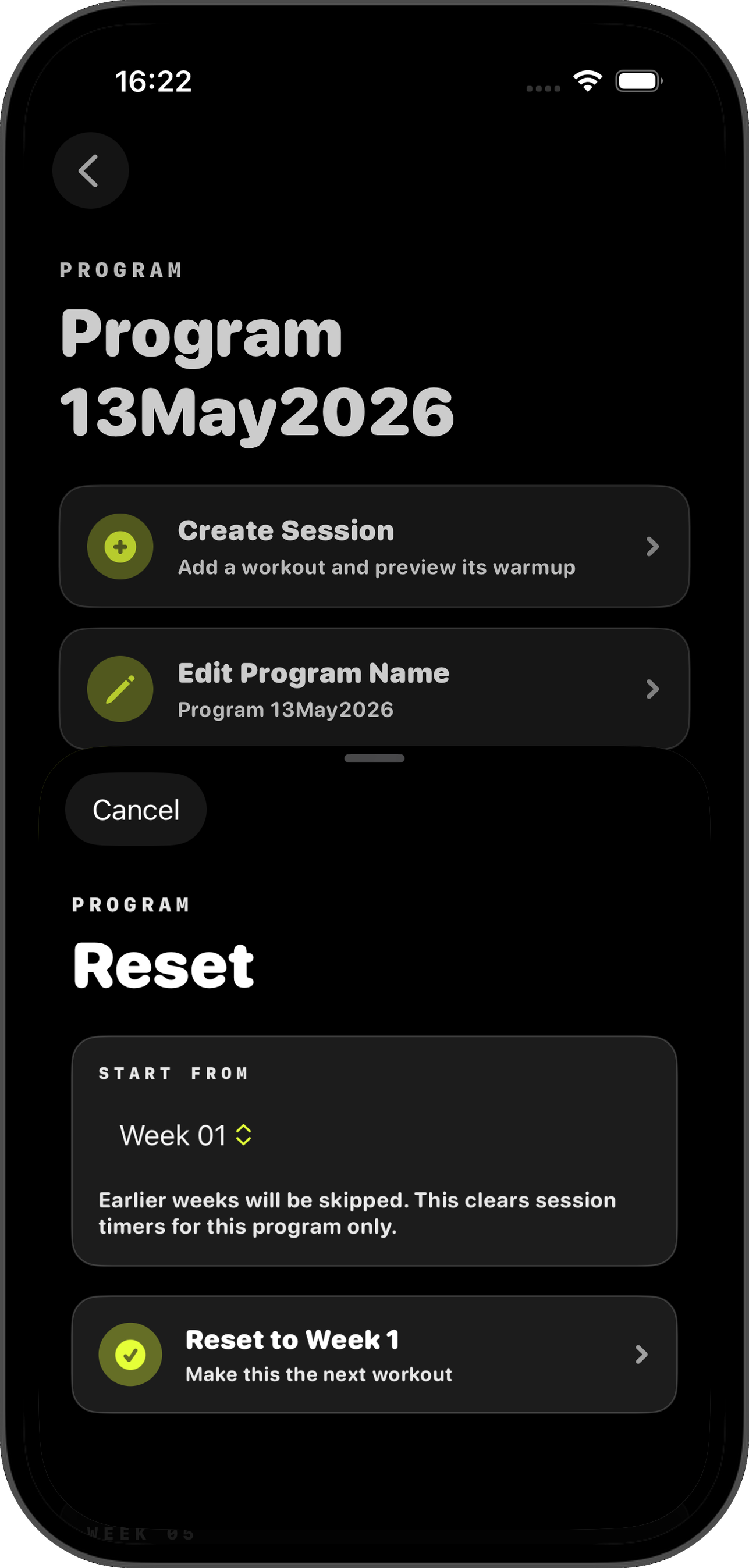
Reset program sheet with Start From week picker and Reset to Week 1 button
Programs · Reset

Reset.

Restarts a program from a chosen week.

  • Start From selects the week that should become next.
  • Earlier weeks are marked skipped.
  • Sessions from the selected week onward are set back to not started.
  • Active workout timers and saved workout-flow state are cleared for that program.
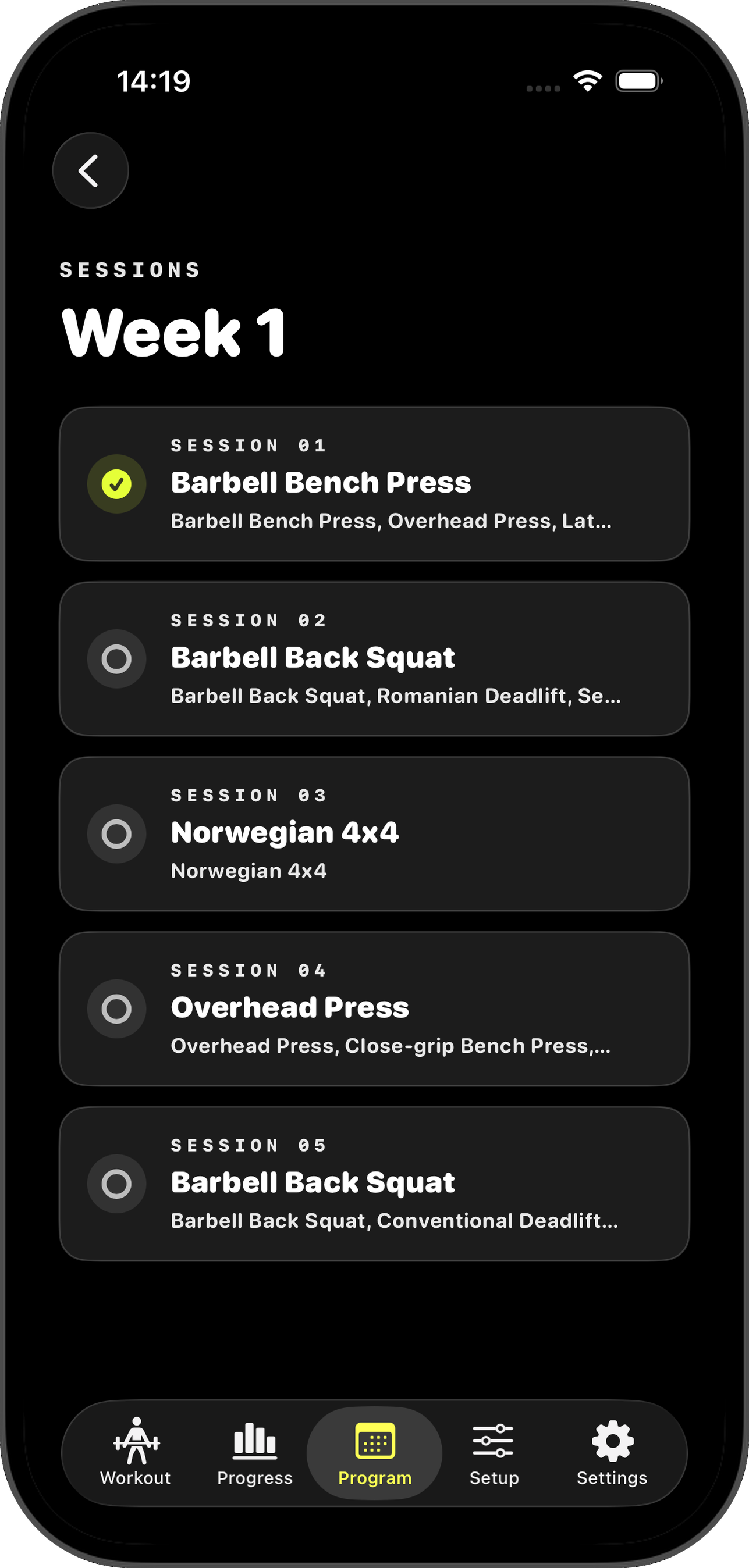
Week 1 sessions list with status icons and workout previews
Programs · Week detail

Week Detail.

All sessions in a week. Session rows show status with icons:

  • Empty circle — not started.
  • Clock — in progress.
  • Pause circle — paused.
  • Checkmark circle — completed.
  • Forward circle — skipped.
  • Row previews up to the first three workouts. Tap to open session detail.
Session detail showing every workout item with prescription, load, and notes
Programs · Session detail

Session Detail.

Every workout item in a session.

  • Each item shows exercise name, workout type, equipment, set/rep prescription, load, bodyweight cue, and notes when available.
  • Start Session or Resume Session marks the session active and sends it to the Workout tab flow.
  • Skip Session moves on without saving progress.
  • Mark Complete or Rest Complete completes the session and writes a progress log.
  • Completed or skipped sessions disable these actions.
04 ·

Program import.

HGB accepts .xlsx, .csv, and .tsv program files. The full step-by-step on building your spreadsheet lives on the Template page.

iOS Files picker showing program spreadsheet files on the device
Settings · Import program

What the importer accepts.

  • Google Sheets shortcut files are not importable directly. Export from Google Sheets as Microsoft Excel .xlsx, then import the downloaded file.
  • Required columns: week, session, workouttype, exercisename. The importer also accepts workout or exercise as exercise-name alternatives.
  • Optional columns: sequence, equipment, load, load unit, reps/duration, reps unit, sets, RPE, notes.
  • Header matching is case-insensitive and ignores whitespace.
  • Warmup rows are skipped — HGB generates warmups automatically.
  • BW, body, and bodyweight in load, unit, or equipment fields are treated as bodyweight.
  • Barbell lift loads are rounded to whole numbers; dumbbell loads can keep decimals.
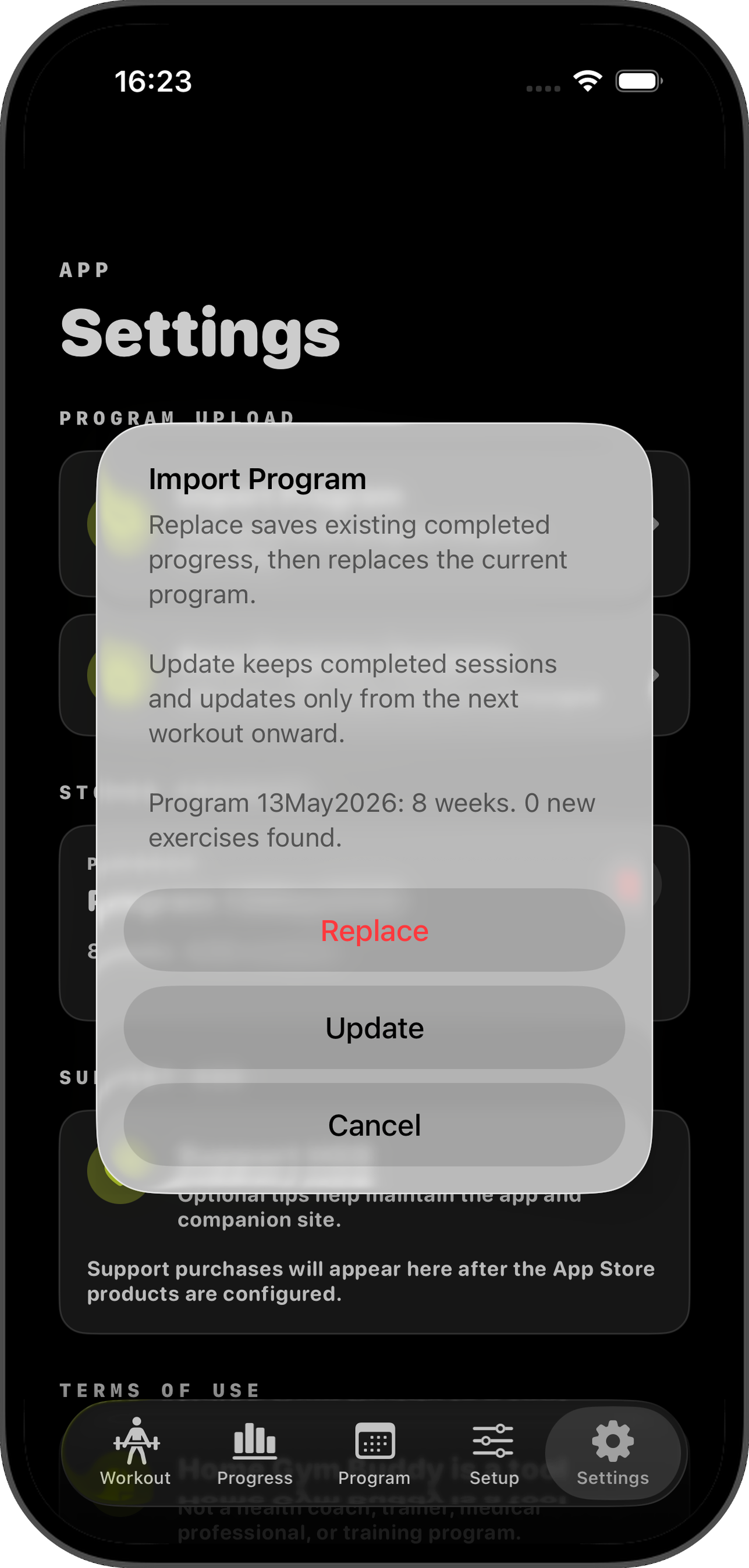
Import Program prompt with Replace, Update, and Cancel options
Settings · Importing over a program

Importing over an existing program.

  • Replace — archive completed progress logs, delete the current program, and use the imported program from the beginning.
  • Update — keep completed sessions and replace only the next not-completed session onward.
  • Cancel — leave the current program unchanged.
05 ·

Data & recovery cues.

Small behaviours that aren't obvious from the screens themselves.

Completing vs. skipping.

Completing a session creates a progress log. Skipping a session does not.

Closing the app mid-workout.

HGB restores the active phase, active exercise, completed set count, and rest timer when you reopen it.

Rest notifications.

Cancelled when rest is skipped, the session is paused, or the session is completed.

Saved-data recovery.

If saved training data cannot be opened, the app may show a training-data attention screen or fall back to an in-memory store after recovery attempts.

06 ·

Common troubleshooting.

If something isn't behaving — check here first. Most issues come down to import format or notification permissions.

I don't see a workout.

Import a program from Settings, or create a manual session inside an existing program.

My Google Sheet won't import.

Download it as .xlsx first, then import that file from Files.

The import says columns are missing.

Check that the file includes week, session, workouttype, and exercisename — or an accepted exercise-name alternative.

My warmup isn't what I expected.

General warmups are detected from workout names and equipment. Barbell ramp-up sets only appear for supported barbell lift names with a load.

My progress didn't change after skipping.

Skipped sessions intentionally do not create progress logs.

Rest alerts aren't appearing.

Check iOS notification permission for HGB and make sure the session has not been paused, skipped, or completed.